
Meet your assistant
Get to know your assistant and make it yours. Follow a visual walkthrough of its knowledge, appearance, welcome message, suggested questions, and response style.
On this page
- 1. Get to know its knowledge
- 2. Fill a gap with a new source
- Add a public page
- Add information that is not on your website
- 3. Make the assistant look familiar
- 4. Write a welcome that starts a conversation
- 5. Give visitors an easy first question
- 6. Choose how the assistant replies
- 7. Meet the finished assistant in a real chat
Your assistant already has a starting point from onboarding. Now spend a little time exploring what it knows, how it introduces itself, and how it helps a visitor start a conversation.
By the end of this guide, you'll have a familiar-looking assistant, a useful greeting, and a real answer you can evaluate. Keep your dashboard open alongside the guide and follow the steps that matter to your business.
1. Get to know its knowledge#
From the dashboard, choose Website sources under Train your assistant. You can also reach it through Settings → Website links.
Review the pages in the list. Are your main products or services, delivery details, returns policy, and contact information represented? Open a source link to check that the page is current and useful to customers.
Look for Complete beside a source and check the Overview. A page that is still fetching needs more time. Background discovery can add more pages after the first page is ready, so an early ready count does not necessarily mean discovery has finished.
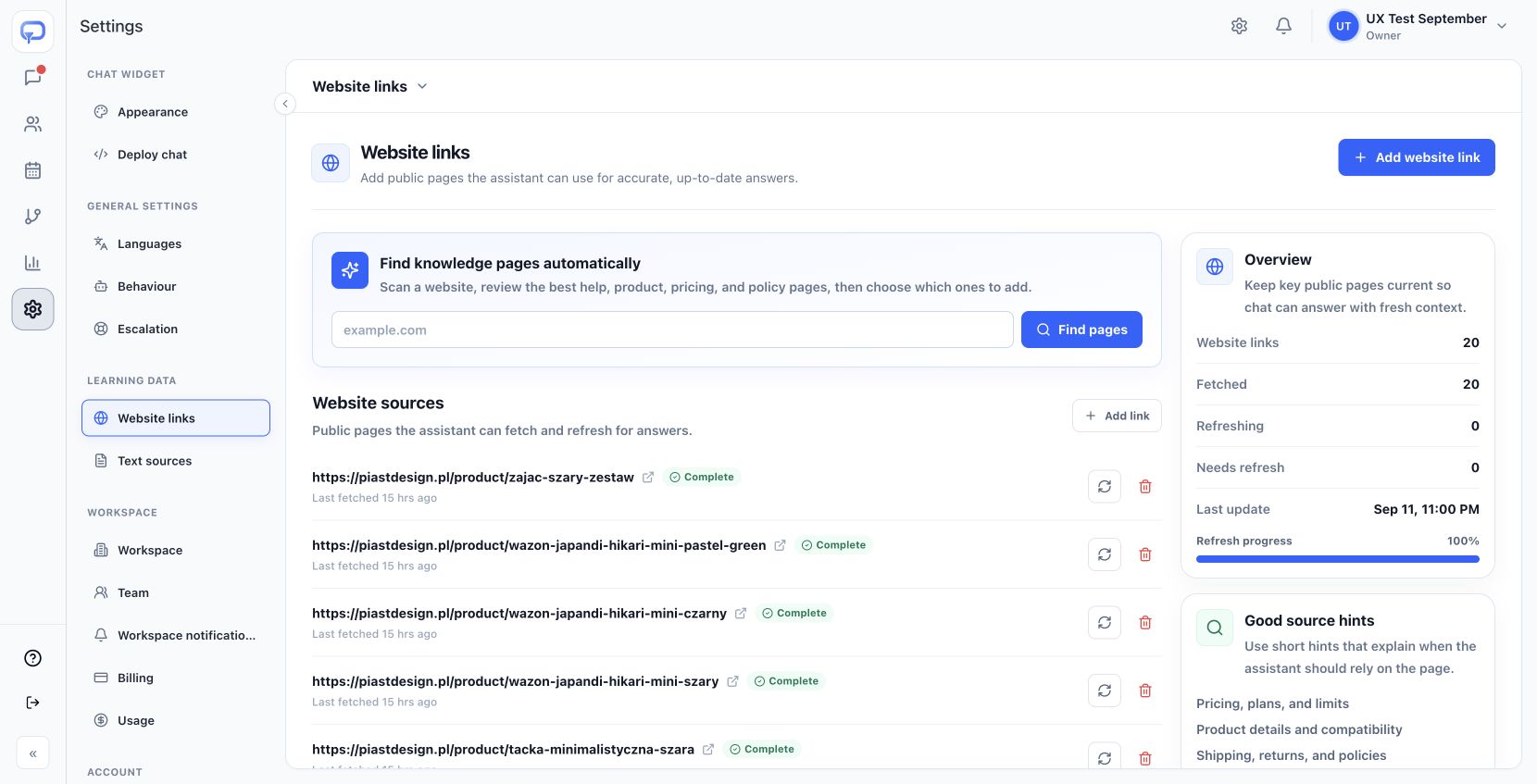
Try this: pick one common customer question and find the page that should answer it. This gives you a useful question for the final chat test.
2. Fill a gap with a new source#
Add a public page#
If a useful page is missing, select Add website link. Enter the Page link and a short Source hint describing when the assistant should use it, then add the source.
A hint such as “Delivery options, shipping costs, and order preparation times” is more helpful than “Website page.” The example below uses a delivery page; add it only if it is missing from your list.
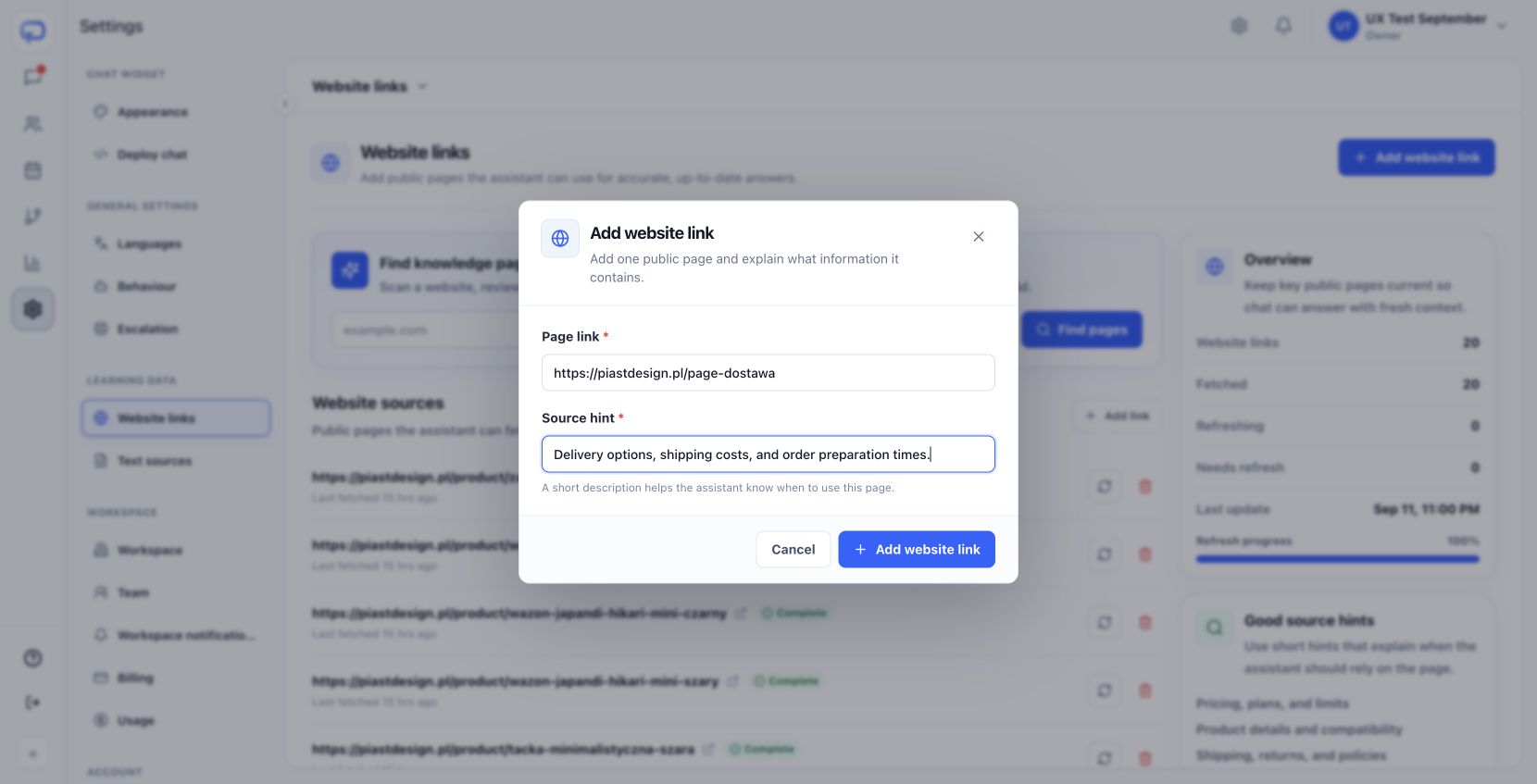
For several missing pages, use Find pages to scan a website and review what to add. For existing content that has changed, use the source's Refresh source control.
Add information that is not on your website#
Open Settings → Text sources → Add text source. Give it a descriptive title, explain when to use it in Source hint, and paste the answer or guidance into Knowledge text.
Keep each source focused on one topic. For example, “Choosing a decorative tray” can explain what a visitor should consider without inventing a product's price or availability. Add information that is appropriate for the assistant to use in customer-facing answers.
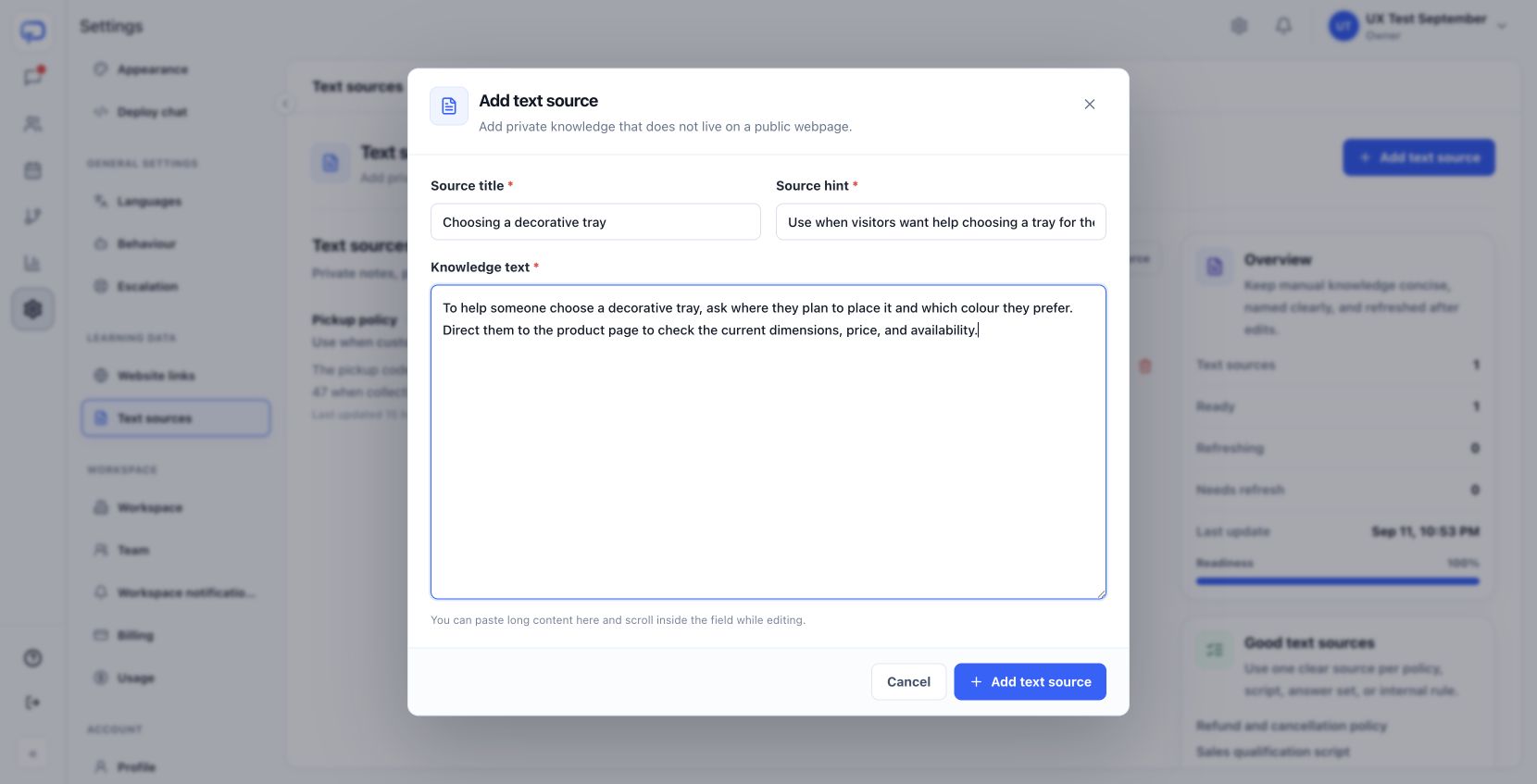
Select Add text source and wait for it to become ready. After editing an existing source, check its status and use Refresh when needed before testing again.
3. Make the assistant look familiar#
Open Settings → Appearance. Start with Colors and shape: choose your chat color, check the message bubbles and text contrast, and adjust the corner radius if needed. Watch the preview as you work.
Under Chat launcher, review the icon and its position. You can use a built-in icon or keep an imported brand icon. Review the desktop placement and the optional separate mobile settings so the launcher suits both layouts.
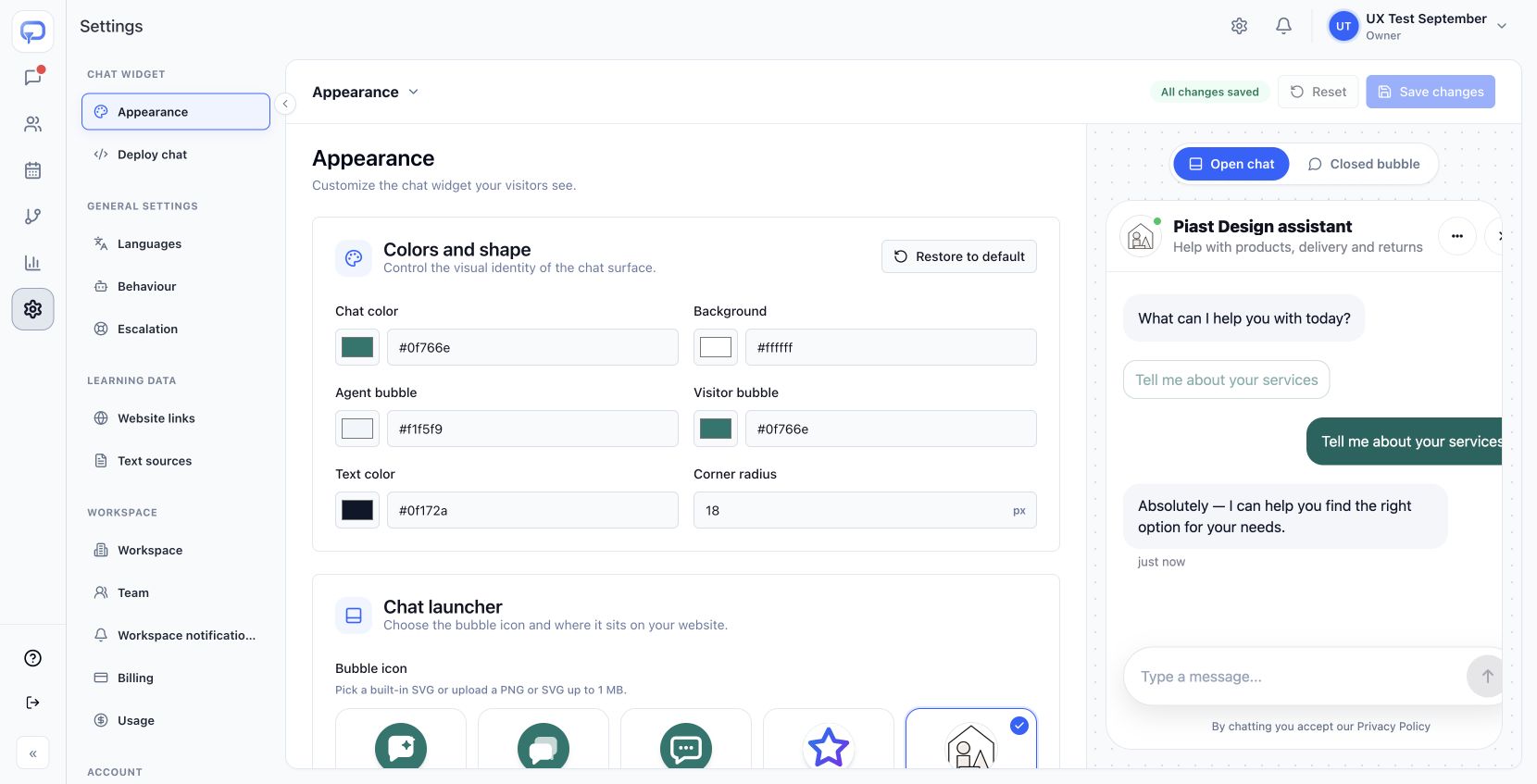
Scroll to Agent identity. Set a recognizable Agent name, a short Subtitle, and an appropriate image. Fit image keeps a logo visible; Fill avatar crops an image to fill the circle.
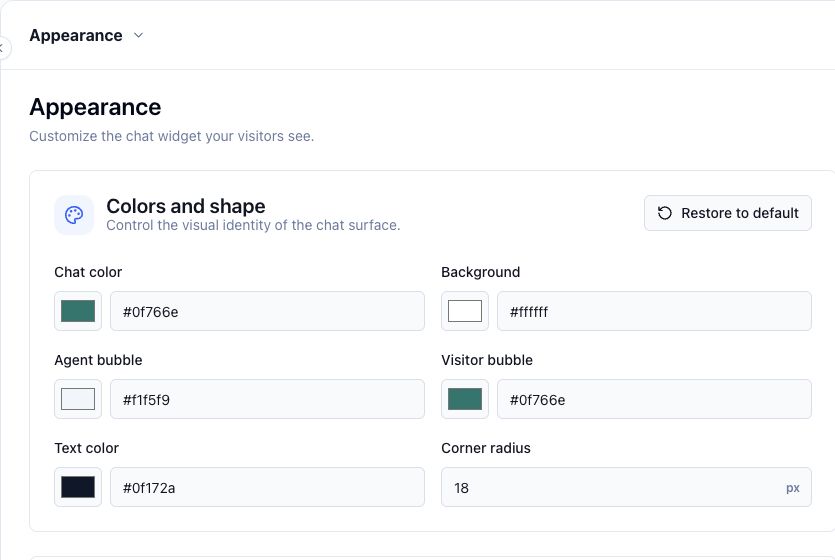
While here, review the Privacy text and Privacy URL under Trust and controls. Select Save changes and look for All changes saved before moving on.
4. Write a welcome that starts a conversation#
Open Welcome message from the dashboard, or go to Automations → Welcome message. Keep Show the simple welcome message enabled if you want an immediate greeting.
Introduce the assistant, say what it can help with, and invite a question. For the example shop, we used:
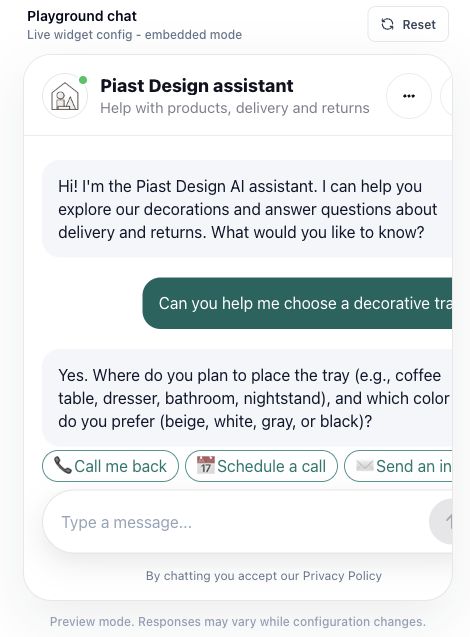
Hi! I'm the Piast Design AI assistant. I can help you explore our decorations and answer questions about delivery and returns. What would you like to know?
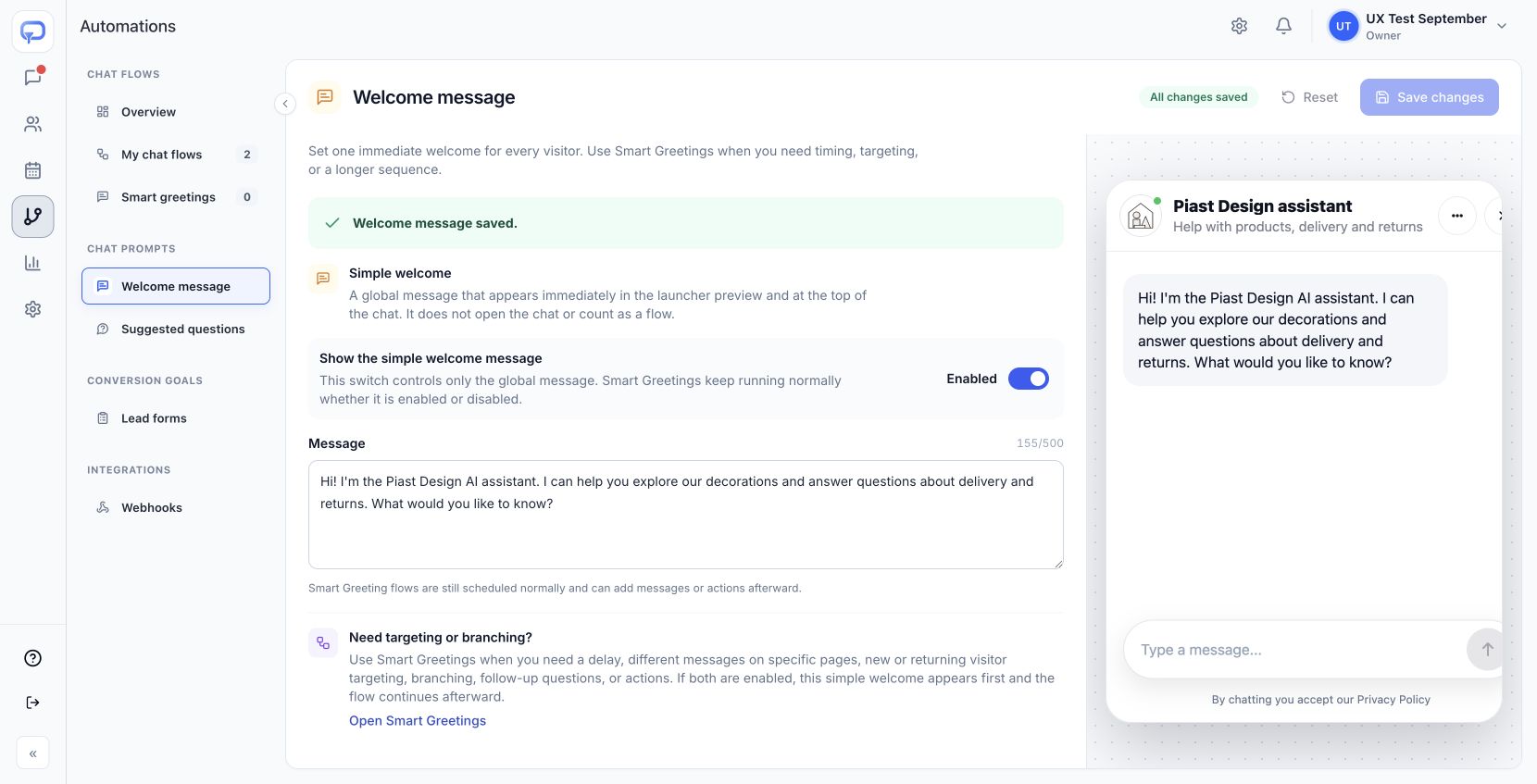
Select Save changes. This simple welcome is global and immediate; it does not open the chat by itself. You can explore Smart Greetings later for different pages, timing, or longer sequences.
5. Give visitors an easy first question#
Open Automations → Suggested questions. Review the existing options, then use Edit or Add question. Choose a short question a real visitor might ask, such as “How long does delivery take?”
For a knowledge question, choose Answer the question as its action. Review When to show and Page targeting, then select Save question. Contact buttons can open a form or calendar instead, so check the action as well as the wording.
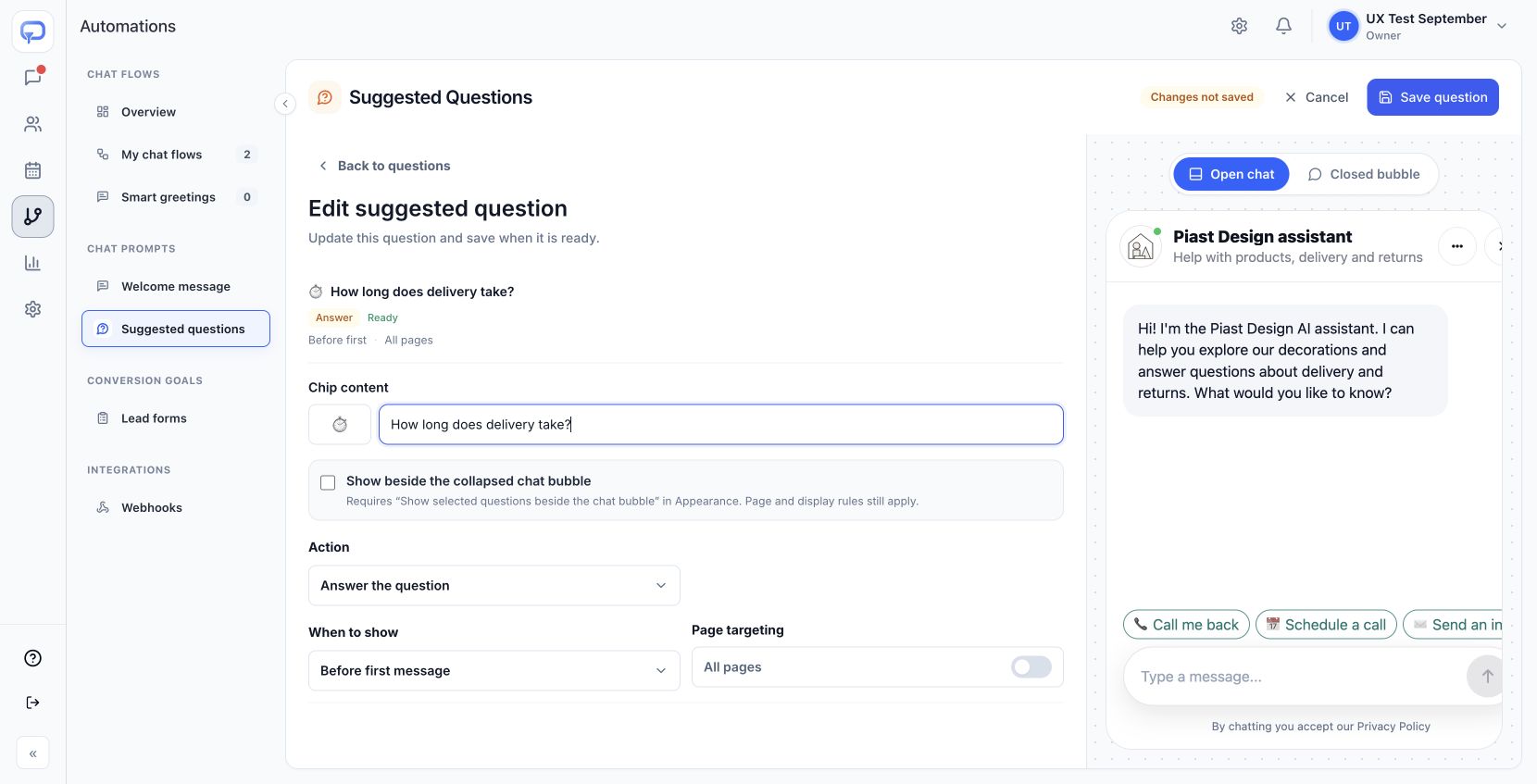
Start with a few useful choices. If you want a question beside the closed launcher, enable its collapsed-bubble option and check the matching display switch in Appearance.
6. Choose how the assistant replies#
Open Settings → Behaviour. Review Voice style, Emoji use, and any Excluded subjects. You can let the assistant match the visitor or choose a fixed voice.
For a specific writing preference, select Add layer under Behaviour layers. Give it a clear name and a short instruction, for example:
Use short paragraphs and plain language. Keep the tone warm and calm. Ask one question at a time.
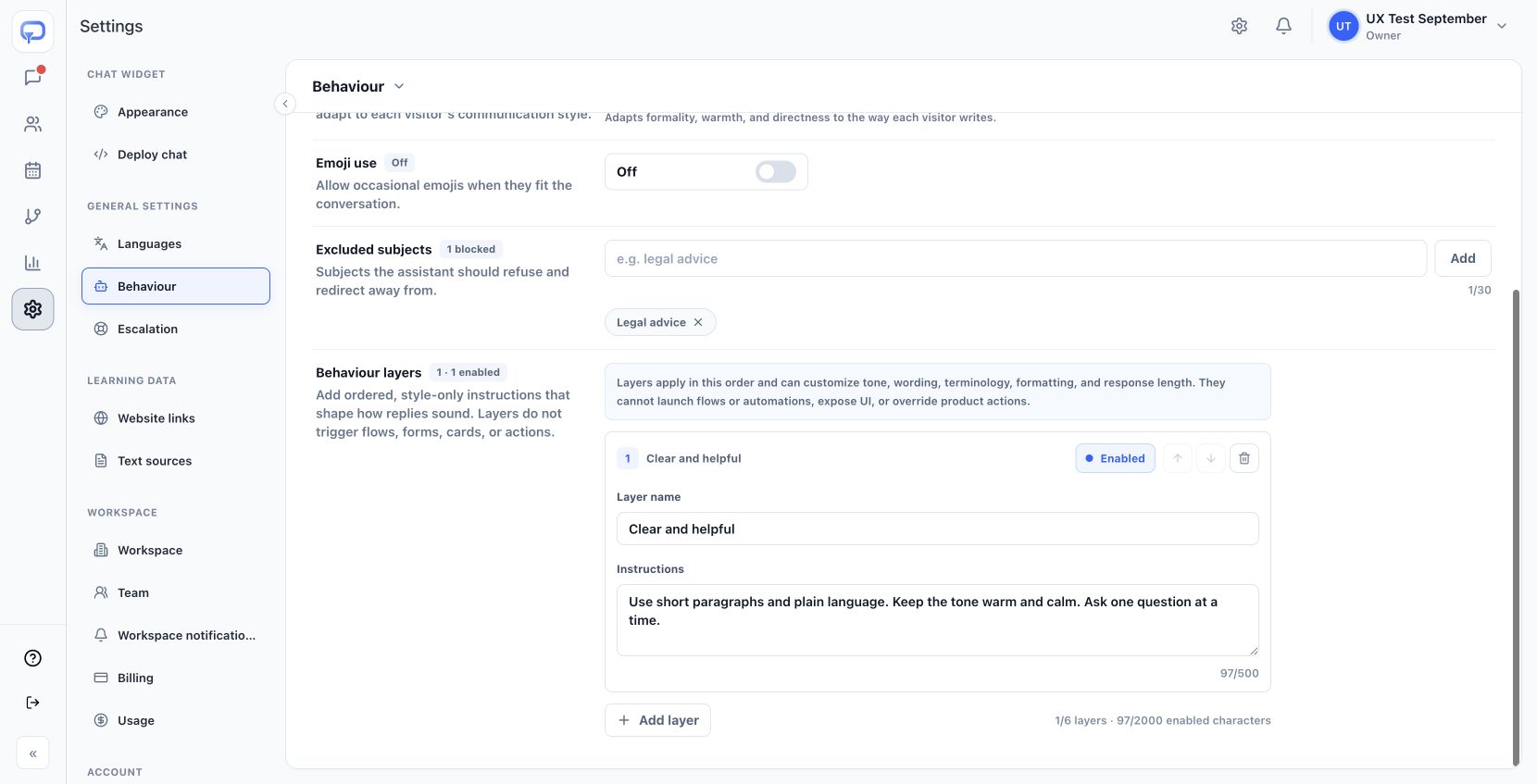
Select Save changes. Test how these preferences affect a real reply; a saved instruction still needs a conversation check.
7. Meet the finished assistant in a real chat#
Return to the Dashboard and use Playground chat. The editors' previews help you inspect appearance; the playground is where you can evaluate actual answers.
Start a fresh test with Reset if needed. Ask the question you chose in step 1, then try a question covered by your new text source. In this walkthrough, “Can you help me choose a decorative tray?” led the assistant to ask about placement and color.
Before you finish, check:
- Does the assistant introduce itself clearly and look like your business?
- Is the answer accurate and supported by the information you added?
- Is the tone comfortable, and are follow-up questions easy to answer?
- Does a suggested question perform the action you expected?
If something is off, change the relevant source or setting and try again. You have now explored the core controls behind your assistant. Next, review how visitors can contact your team, including the forms or calendar behind those options.